Are you tired of juggling numbers on paper or switching between complicated software? What if you could build your own accounting system right inside Excel—simple, customized, and ready to use?
Creating accounting software in Excel might sound challenging, but it’s easier than you think. In this guide, you’ll discover step-by-step how to set up a powerful, easy-to-manage accounting tool tailored just for your needs. Stick with me, and by the end, you’ll have the skills to organize your finances like a pro without spending a dime on expensive programs.
Let’s get started!
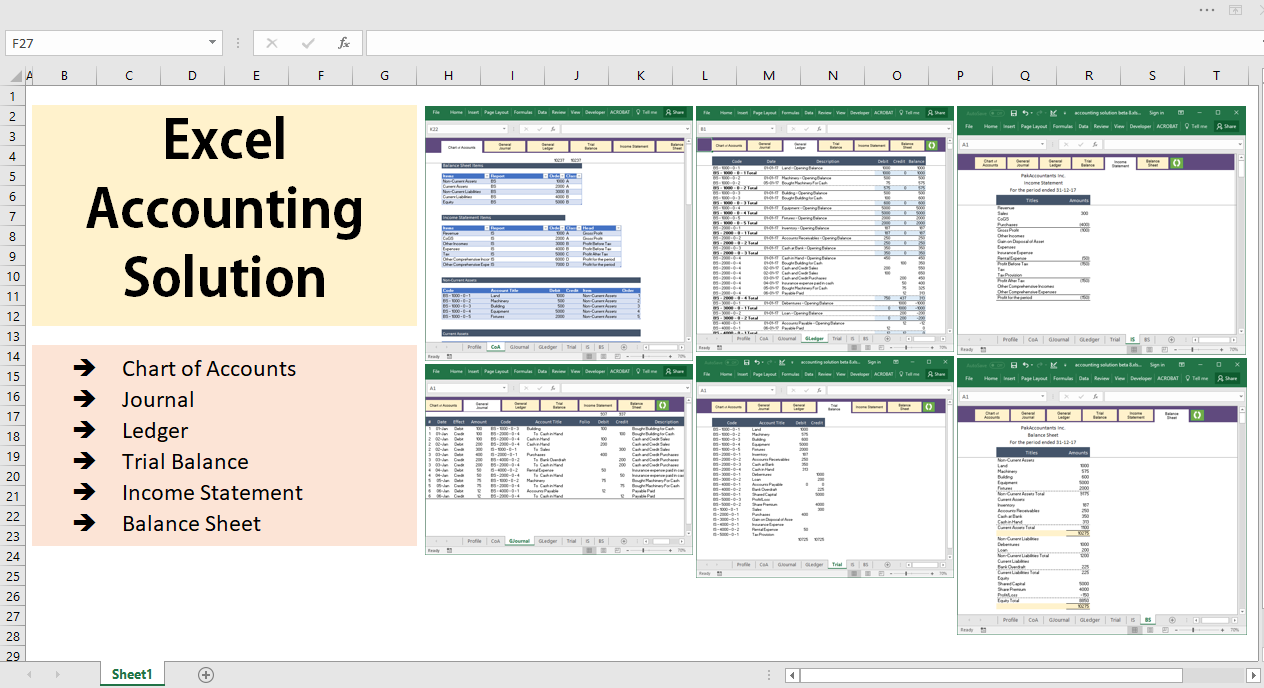
Credit: pakaccountants.com
Planning Your Accounting Software
Planning your accounting software is the first step to build a tool that works well. Good planning saves time and avoids mistakes. It helps you focus on what is important and makes the software easy to use. Start by thinking about what the software should do and how it should look. This step sets a strong base for the whole project.
Identifying Key Features
Decide which functions your software needs. Common features include tracking income and expenses, managing invoices, and generating reports. Choose features that match your business needs. Keep the list short to avoid confusion. Focus on features that help manage money clearly and simply.
Designing The Layout
Plan how your software will look on the screen. Use simple tables and clear labels for easy reading. Group related information together. Leave space for data entry and display results clearly. A clean layout helps users find what they need fast. Avoid clutter to keep the software friendly and easy to navigate.
Setting Up Data Structure
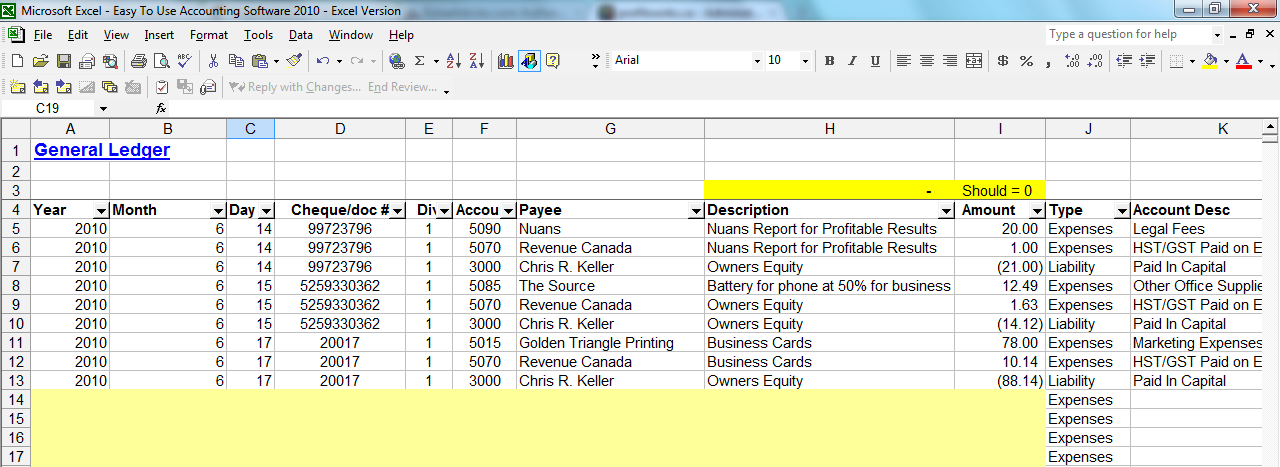
Create a clear structure to store your data in Excel. Use separate sheets or tables for different types of information. For example, one sheet for transactions, another for customers. Make sure data is organized in rows and columns with headers. This setup helps with easy data entry and quick calculations.
Credit: profitworks.ca
Setting Up The Workbook
Setting up the workbook is the first step in building accounting software in Excel. A clear structure helps manage data easily. Organizing sheets and formatting cells reduce errors and save time. Proper setup makes tracking finances simple and efficient.
Creating Essential Worksheets
Start by adding key worksheets to your workbook. Common sheets include Income, Expenses, and Summary. Income tracks money coming in. Expenses record money going out. The Summary sheet shows totals and balances. These sheets form the backbone of your accounting system.
Naming And Organizing Sheets
Name each sheet clearly to reflect its purpose. Use simple names like “Income” or “Expenses.” Keep the order logical: Income first, then Expenses, finally Summary. Group related sheets together to find them fast. Avoid long or complex names to prevent confusion.
Formatting For Clarity
Format cells to improve readability. Use bold headers for column titles. Apply borders to separate sections clearly. Set consistent font sizes and colors. Use number formats for currency and dates. This helps users read data quickly and understand it well.
Building The Data Input Forms
Building data input forms in Excel is key to efficient accounting software. Forms help enter data quickly and reduce mistakes. Well-designed forms guide users to input correct information. This saves time and improves accuracy. Excel offers tools to create clear, user-friendly input forms.
Using Data Validation
Data validation limits the type of data entered in cells. It helps keep data clean and consistent. Set rules like number ranges or date limits. Use text length limits to avoid errors. Excel warns users when invalid data is entered. This feature is simple but powerful for form control.
Adding Drop-down Lists
Drop-down lists offer choices from a set of options. They make data entry faster and reduce errors. Create drop-downs with data validation by listing options on a sheet. Users select values instead of typing them. This method is useful for categories, payment methods, or account types.
Inserting Form Controls
Form controls add interactive elements like buttons and checkboxes. Use them to simplify user actions. For example, checkboxes can mark completed tasks. Buttons can run macros to automate tasks. Insert controls from the Developer tab in Excel. These controls enhance form usability and professionalism.
Implementing Core Accounting Functions
Implementing core accounting functions in Excel is essential for building reliable software. These functions help manage financial data with accuracy and ease. Excel’s tools allow users to track transactions, calculate totals, and monitor expenses efficiently.
Building these functions step-by-step creates a strong foundation for your accounting software. Clear organization and simple formulas make data easy to understand and update.
Recording Transactions
Start by creating a transaction log in Excel. Use columns for date, description, category, and amount. Each row should represent a single transaction. This layout helps keep records clear and organized.
Use data validation to limit input errors. Dropdown lists for categories improve consistency. Enter positive numbers for income and negative for expenses. This method simplifies tracking money flow in your system.
Calculating Totals And Balances
Sum income and expenses using the SUM function. Create separate totals for each category to monitor spending closely. Use formulas to calculate the running balance after each transaction. This approach shows the current financial position clearly.
Apply cell formatting to highlight totals and balances. This visual aid helps users quickly understand their finances. Keep formulas simple to avoid confusion and errors.
Automating Expense Tracking
Use Excel’s IF and SUMIF functions to automate expense tracking. These formulas can calculate total expenses by category or date range. Set up conditional formatting to flag high spending or unusual activity.
Automating these tasks saves time and reduces mistakes. It also provides quick insights into where money goes. This feature makes your accounting software more practical and user-friendly.
Creating Financial Reports
Creating financial reports is a key step in using Excel for accounting. These reports show how your business performs. They help track money in and out. Clear reports support better decisions. Excel lets you build these reports with simple tools.
Generating Income Statements
An income statement shows your business’s profit or loss. It lists all income and expenses. Start by entering sales and revenue data. Then, subtract expenses like rent and salaries. Use formulas like SUM to add up values. Format the report to show totals clearly. This helps see how much money you earned or lost.
Building Balance Sheets
A balance sheet shows your business’s financial position. It lists assets, liabilities, and equity. Assets include cash and equipment. Liabilities are debts or loans. Equity is what the owner owns. Use Excel tables to organize these items. Make sure assets equal liabilities plus equity. This keeps your sheet balanced and correct.
Designing Cash Flow Reports
Cash flow reports track money moving in and out of your business. They show cash from operations, investing, and financing. Start with cash at the beginning of the period. Add cash received and subtract cash spent. Use Excel formulas to calculate net cash flow. This report helps you know if you have enough cash to run your business.
Adding Automation With Formulas And Macros
Adding automation with formulas and macros makes accounting software in Excel more powerful. Automation reduces manual work and errors. It speeds up calculations and data entry. This section explains how to use formulas and macros for automation.
Using Excel Formulas Effectively
Excel formulas perform automatic calculations based on your data. Use formulas like SUM, AVERAGE, and IF to analyze numbers quickly. For example, SUM adds all values in a column. IF checks conditions and gives results accordingly. Formulas update results automatically when you change data.
Organize data clearly to use formulas without errors. Keep ranges and cell references correct. Use absolute references with $ signs to fix cells in formulas. This helps when copying formulas across rows or columns.
Recording Basic Macros
Macros automate repetitive tasks by recording your actions. Start the macro recorder in Excel, perform steps, and stop recording. Excel saves these steps as a macro. You can run the macro anytime to repeat the task automatically.
Record simple macros like formatting cells, entering standard text, or copying data. Avoid complex steps at first. Test macros carefully to ensure they work as expected. Editing macros requires basic knowledge of VBA, Excel’s programming language.
Assigning Macros To Buttons
Assigning macros to buttons makes automation easy to use. Insert a button from the Developer tab in Excel. Link the button to your macro. Clicking the button runs the macro immediately.
Place buttons where users can find them easily. Label buttons clearly for their function. This improves workflow and reduces mistakes. Button-driven macros make your Excel accounting software user-friendly and efficient.
Testing And Debugging Your Software
Testing and debugging your accounting software in Excel is a key step. It ensures your tool works correctly. This step helps find mistakes and fix them early. A well-tested software reduces errors during actual use. It also makes your program more reliable and easy to use.
Checking For Errors
Start by looking for formula mistakes. Excel often shows errors like DIV/0! or VALUE!. These signals mean something is wrong. Review your calculations carefully. Check each formula cell by cell. Test different inputs to see if results match expectations. Use Excel’s built-in error checking tools for help.
Validating Data Integrity
Ensure the data entered is accurate and consistent. Use data validation rules to limit input types. For example, restrict date fields to actual dates only. Prevent users from entering text where numbers belong. Compare totals and subtotals for consistency. Regularly review data to catch unusual entries.
Improving User Experience
Make your software easy to understand and use. Add clear labels and instructions. Use simple buttons or dropdowns for common tasks. Keep the layout clean and organized. Test the software with real users or friends. Ask for their feedback to find confusing parts. Fix issues that slow down or confuse users.
Maintaining And Updating The System
Maintaining and updating your Excel accounting software keeps it reliable and useful. Regular care helps avoid errors and data loss. It also lets you add new features that improve your work. Responding to user feedback makes the system fit your needs better. This section explains how to keep your system healthy and up to date.
Backing Up Data
Always save a copy of your Excel files in a safe place. Use cloud storage or an external drive for backups. Backups protect your data from accidental deletion or corruption. Schedule backups regularly, such as daily or weekly. This simple step saves time and stress if problems occur.
Adding New Features
Look for ways to improve your software with new tools. Adding features can automate tasks or improve reports. Start small, like adding new formulas or buttons. Test each change to avoid breaking the system. Keep notes about updates for future reference.
Handling User Feedback
Listen to users who work with the software daily. They notice bugs and suggest useful improvements. Collect feedback through emails or quick surveys. Prioritize changes that make the system easier and faster to use. Implement updates carefully and inform users about them.

Credit: www.youtube.com
Frequently Asked Questions
How Can I Start Creating Accounting Software In Excel?
Begin by planning your accounting needs. Use Excel tables and formulas to track income, expenses, and balances. Design clear sheets for data entry and reports.
What Are Essential Excel Functions For Accounting Software?
SUM, IF, VLOOKUP, and PivotTables are crucial. They help calculate totals, conditional data, and generate dynamic reports efficiently.
Can Excel Handle Complex Accounting Tasks?
Excel manages basic to moderate accounting well. For complex tasks, specialized software may be better. Excel is flexible but has limits.
How Do I Ensure Data Accuracy In Excel Accounting?
Use data validation, locked cells, and error-checking formulas. Regularly review and reconcile data for accuracy and consistency.
Conclusion
Creating accounting software in Excel is simpler than you think. You can track income, expenses, and profits all in one place. Excel’s tools help organize data clearly and quickly. This saves time and reduces errors. Start with basic sheets and add features as you learn.
Practice often, and you will improve. Small steps lead to big results. Keep your design simple and easy to use. Soon, you will manage your accounts with confidence and ease. Excel offers a flexible way to handle your finances smartly.
Give it a try and see the difference.