Are you tired of juggling complicated billing systems or paying for expensive software just to send invoices? What if you could create a simple, professional invoice right inside Excel, tailored perfectly to your needs?
In this guide, you’ll discover easy steps to build your own invoice software using Excel—no advanced skills required. By the end, you’ll have a tool that saves you time, keeps your finances organized, and impresses your clients. Ready to take control of your invoicing and make your work smoother?
Let’s dive in.
Setting Up Your Workbook
Setting up your workbook is the first step in creating invoice software in Excel. A well-organized workbook helps you work faster and avoid mistakes. You will build a clear, easy-to-use template. This template can be reused for every invoice you make.
Start with a clean and simple design. Keep the layout neat. Choose fonts and colors that make your invoice look professional. Let’s break down the process into simple steps.
Creating A New Excel File
Open Excel and create a new blank workbook. Save it with a clear name like “Invoice Template.” This makes it easy to find later. Use one workbook for all your invoices. You can add new sheets for each invoice or client.
Designing The Layout
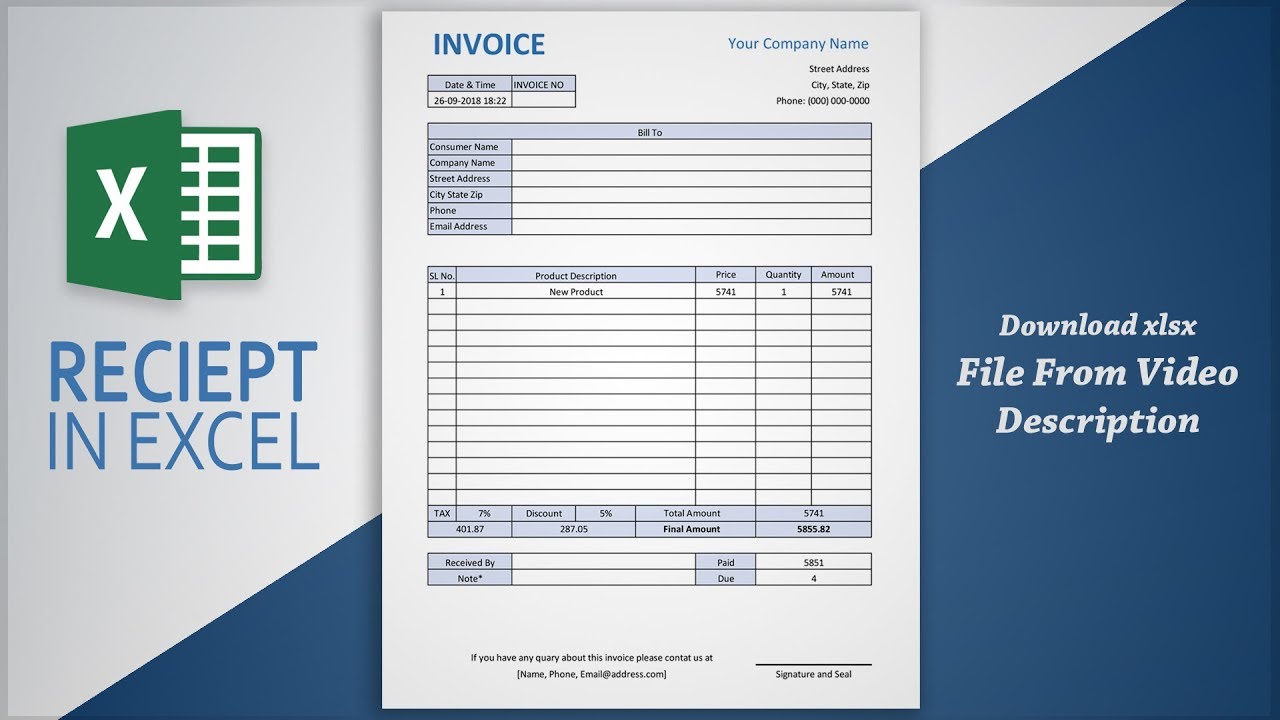
Plan your invoice layout before adding data. Divide the sheet into sections: header, client info, item list, and totals. Use merged cells for titles and headings. Add borders to separate areas clearly. Leave space for your company logo and contact details.
Choosing The Right Fonts And Colors
Pick simple, readable fonts like Arial or Calibri. Use a font size between 10 and 12 for main text. Choose one or two colors that match your brand. Use dark text on a light background for easy reading. Avoid bright colors or too many font styles.

Credit: www.spreadsheet123.com
Adding Invoice Elements
Adding invoice elements is a key step in creating your invoice in Excel. These elements make your invoice clear and professional. They help your client understand the charges and details easily. Each part plays a unique role.
Start by placing your company details at the top. This shows who the invoice is from. Next, add client information. This tells who the invoice is for. Finally, include the invoice number and date. These keep your records organized and track payments.
Inserting Company Details
Type your company name in a large, bold font at the top. Below it, add your address, phone number, and email. Use a smaller font for these details. Keep the text left-aligned for easy reading. You can also insert your company logo next to the name. This adds a professional touch and helps with branding.
Adding Client Information
Create a section below your company details for the client’s name. Include their company name if they have one. Add their address and contact number. This information helps your client know the invoice is meant for them. It also helps with sending reminders or follow-ups.
Including Invoice Number And Date
Place the invoice number near the top right of the sheet. Use a clear format like INV-001 or 2024-001. Right below, add the invoice date. This shows when you created the invoice. Use the date format that suits your region, such as MM/DD/YYYY or DD/MM/YYYY. These details help in tracking payments and managing accounts.
Building The Itemized List
Building the itemized list is a key step in creating invoice software in Excel. This list shows all products or services sold. It helps both the seller and buyer understand the details of the sale clearly. An organized itemized list also makes calculating totals easier and faster.
Each item needs clear information like name, quantity, and price. Excel’s columns and formulas help to organize and calculate these details automatically. Let’s start by setting up the columns.
Setting Up Columns For Items
Create columns for essential details. Start with "Item Description" to name products or services. Next, add "Quantity" to show how many units were sold. Include a "Price" column for the cost of one unit. Finally, add a "Total" column to calculate the cost for each item.
Keep column headers simple and clear. This helps avoid confusion later. You can add more columns if needed, like "Item Code" or "Notes."
Adding Quantity And Price Fields
Quantity and Price fields must allow easy data entry. Format these columns as numbers. Use whole numbers for quantity. Use currency format for price to show money values clearly.
Make sure to leave enough space in the cells. This prevents errors when entering data. Clear labels help users enter the right information every time.
Using Formulas For Calculations
Use formulas to calculate the total cost of each item. Multiply the quantity by the price. For example, in the "Total" column, enter =B2C2 if B2 is quantity and C2 is price.
Copy this formula down the column for all items. This makes the invoice update automatically when quantities or prices change. Formulas reduce mistakes and save time.
Automating Calculations
Automating calculations in Excel saves time and reduces errors. It lets you focus on your business, not on math. Excel’s formulas help you calculate invoice amounts quickly. You can set up your invoice to do all the adding and multiplying for you.
This way, your invoice updates automatically as you enter data. No need to calculate totals by hand. Excel handles it all behind the scenes. It makes your invoices look professional and accurate.
Calculating Subtotals
Start by listing all items and their prices. Use a formula to multiply quantity by price for each item. For example, use =B2C2 to get a line total. Then, sum all line totals to get the subtotal. Use =SUM(D2:D10) where your line totals are. This keeps your subtotal accurate as you add or remove items.
Applying Taxes And Discounts
Next, calculate taxes on the subtotal. Use a formula like =D110.07 for 7% tax. For discounts, subtract the discount amount or percentage. For example, =D110.1 for 10% discount. Make sure to apply taxes after discounts if needed. This step helps avoid mistakes and keeps your invoice clear.
Computing Total Amount Due
Finally, add the subtotal and tax, then subtract discounts. Use a formula such as =D11+D12-D13. This shows the total amount the customer must pay. Excel updates this total as you change any numbers. Your invoice stays correct and easy to understand.
Incorporating Payment Terms
Incorporating payment terms in your invoice software is vital. It helps customers understand how and when to pay. Clear payment terms reduce confusion and speed up payments. You can add these terms easily in Excel.
Specifying Payment Methods
List the payment options your business accepts. Common methods include cash, check, credit card, and online transfer. Adding this information guides customers. It makes paying easier and faster.
Setting Due Dates
Include a clear due date on the invoice. This tells customers when payment is expected. Use Excel formulas to calculate this date automatically. For example, add 30 days to the invoice date. This helps avoid late payments.
Adding Notes And Instructions
Use the notes section for extra payment details. Mention late fees or discounts for early payment. Add instructions for online payments or special cases. This section improves communication and payment clarity.
Formatting For Professional Look
Formatting is key to making your invoice software in Excel look professional. A clean and organized layout helps users find information quickly. It also builds trust with clients. Simple changes can create a polished and clear invoice template.
Focus on aligning text, adding borders, and using color smartly. These small steps improve readability and overall appeal. Excel offers easy tools to enhance your invoice without extra software.
Aligning And Styling Text
Start by aligning text properly. Use left alignment for item descriptions and right alignment for prices. Center titles and headers to make them stand out. Bold important text like invoice numbers and totals. Choose a simple font such as Arial or Calibri for a clean look. Keep font sizes consistent but slightly larger for headings.
Adding Borders And Shading
Borders help separate sections and rows clearly. Use thin lines around cells to avoid clutter. Shade header rows with light colors to highlight them. Avoid dark or bright colors that distract from the content. Apply subtle shading to total or summary rows for emphasis. Borders and shading guide the eye across the invoice smoothly.
Using Conditional Formatting
Conditional formatting adds smart color changes based on data. Use it to highlight overdue invoices or unpaid totals. Set rules to change cell colors if amounts exceed a limit. This draws attention to key details instantly. Keep colors soft and consistent with your invoice theme. Conditional formatting updates automatically, saving time and reducing errors.
Saving And Sharing Your Invoice
Saving and sharing your invoice is a key step in using Excel invoice software. It helps keep your records safe and makes sending invoices easy. Proper saving and sharing methods ensure your invoice looks professional and reaches the right person quickly.
Exporting As Pdf
Export your invoice as a PDF to keep the format intact. PDFs prevent changes and show the invoice exactly as you created it. In Excel, click “File,” then “Save As,” and choose PDF from the file types. This makes your invoice easy to open on any device.
Protecting The Document
Protect your invoice by adding a password or restricting editing. This stops others from changing important details like prices or dates. In Excel, go to “Review” and select “Protect Sheet” or “Protect Workbook.” Set a simple password you can remember.
Sharing Via Email
Send your invoice by email to speed up payment. Attach the PDF file to your email message. Write a clear subject line like “Invoice for [Service/Product].” Keep the message brief and polite. Confirm the recipient’s email address before sending.

Credit: www.youtube.com
Tips For Enhancing Your Invoice
Enhancing your invoice makes it look professional and clear. Clear invoices help customers understand charges easily. A neat invoice can speed up payments. Simple improvements can save time and reduce errors.
Using Drop-down Lists
Drop-down lists in Excel let you pick options fast. Use them for product names, payment terms, or tax rates. This avoids typing mistakes and keeps data consistent. It also speeds up invoice creation. Creating a list is easy with Excel’s Data Validation tool.
Incorporating Company Logo
A company logo makes your invoice look official. It helps customers recognize your brand quickly. Insert the logo at the top for a clean design. Use a clear, small image to keep the file size low. This adds trust and a professional touch.
Setting Up Template For Reuse
Create your invoice as a reusable Excel template. Save it with blank fields for easy updates. This saves time on each new invoice. Keep formulas intact to auto-calculate totals and taxes. Use protection options to avoid accidental changes.
Credit: www.youtube.com
Frequently Asked Questions
How Do I Start Creating Invoice Software In Excel?
Begin by defining your invoice layout with essential fields like date, items, prices, and totals. Use Excel tables for easy data management. Add formulas to calculate totals automatically, ensuring accuracy and efficiency in your invoice creation process.
What Excel Functions Are Best For Invoice Calculations?
Use SUM, IF, and VLOOKUP functions for accurate invoice calculations. SUM totals item prices, IF applies conditional logic, and VLOOKUP fetches product details. These functions streamline data handling and improve invoice accuracy.
Can I Customize My Excel Invoice For Different Clients?
Yes, Excel allows easy customization of invoices. Use drop-down lists, conditional formatting, and separate sheets for client details. This flexibility helps tailor invoices to each client's needs and branding preferences.
How To Automate Invoice Number Generation In Excel?
Use Excel's ROW or COUNTA functions combined with text formulas to auto-generate unique invoice numbers. This automation prevents duplication and saves time, making your invoice system more efficient.
Conclusion
Creating invoice software in Excel helps manage billing easily. You can customize templates to fit your business needs. Using formulas saves time and reduces errors. Keep your design simple for clear, quick invoicing. Update your file regularly to track payments well.
This approach improves organization and speeds up cash flow. Try building your own invoice tool today. It makes handling invoices less stressful and more efficient.