Using a VPN on your Firestick is a smart choice. It helps protect your privacy and secure your connection. But how do you know if your VPN is working on Firestick? This guide will help you check. We will explain simple steps to ensure your VPN is active and secure.
Why Use a VPN on Firestick?
Before diving into checking your VPN, let's understand why you need it. A VPN, or Virtual Private Network, hides your online activity. This is important for several reasons:
- Protects your privacy
- Secures your connection
- Bypasses geo-restrictions
- Stops ISP throttling
These benefits make using a VPN on your Firestick essential. Now, let’s see how to check if your VPN is working properly.
Credit: nordvpn.com
Steps to Check If VPN Is Working on Firestick
Step 1: Connect Your Vpn
First, ensure that your VPN is connected. Open the VPN app on your Firestick. Sign in with your credentials. Select a server location and connect. Wait for the connection to establish.
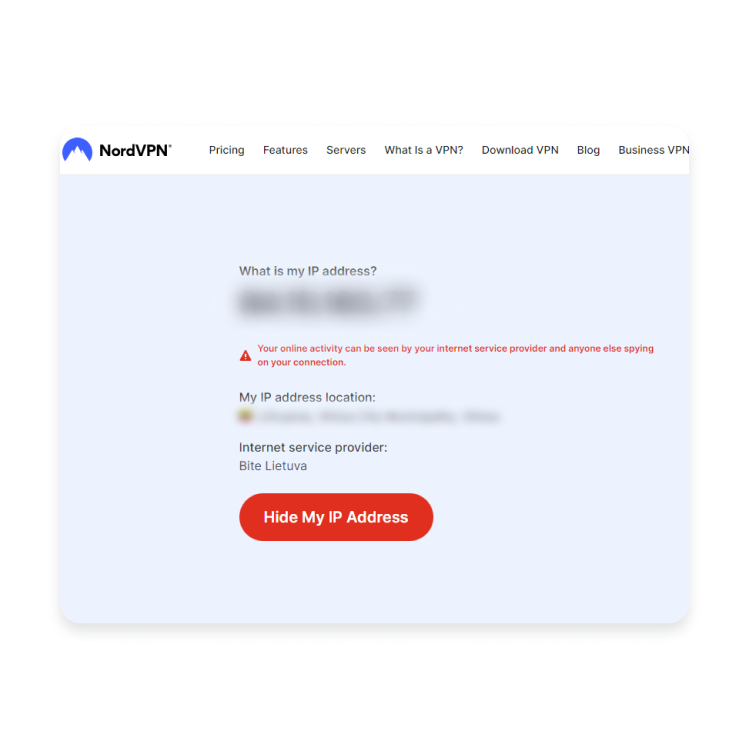
Step 2: Check Your Ip Address
Your IP address is a unique identifier for your device. When you connect to a VPN, your IP address changes. Here’s how to check it:
- Open the Silk Browser on Firestick.
- Go to a website like WhatIsMyIP or IPLocation.
- Note the displayed IP address.
- Disconnect the VPN and check the IP address again.
If the IP address changes when connected to the VPN, it’s working.
Step 3: Run A Dns Leak Test
DNS leaks can reveal your true location. To ensure your VPN is working correctly, run a DNS leak test. Follow these steps:
- Open the Silk Browser on Firestick.
- Go to a website like DNSLeakTest.
- Run the test and note the results.
If the results show your VPN’s location, you are safe. If it shows your actual location, you have a DNS leak.
Step 4: Check Your Internet Speed
VPNs can affect your internet speed. To check if your VPN is working and not slowing you down too much, follow these steps:
- Open the Silk Browser on Firestick.
- Go to a website like SpeedTest.
- Run the speed test with the VPN connected.
- Disconnect the VPN and run the test again.
Compare the results. A small decrease in speed is normal. A significant drop might indicate issues with the VPN.

Credit: www.youtube.com
Common VPN Issues and Fixes on Firestick
Issue 1: Vpn Not Connecting
Sometimes, your VPN might not connect. Here’s what you can do:
- Restart your Firestick.
- Check your internet connection.
- Try a different server location.
- Update the VPN app.
Issue 2: Slow Internet Speed
If your internet speed is slow, try these steps:
- Connect to a server closer to your location.
- Restart your Firestick and router.
- Use a wired connection if possible.
Issue 3: Dns Leaks
If you have DNS leaks, try these solutions:
- Enable DNS leak protection in the VPN settings.
- Use a different VPN provider.
Best VPNs for Firestick
Choosing the right VPN is crucial. Here are some of the best VPNs for Firestick:
| VPN Provider | Features | Price |
|---|---|---|
| ExpressVPN | Fast speeds, strong security, easy to use | $12.95/month |
| NordVPN | Large server network, good for streaming | $11.95/month |
| CyberGhost | User-friendly, good privacy features | $12.99/month |
| Surfshark | Unlimited devices, affordable | $12.95/month |
Frequently Asked Questions
How To Check Vpn Connection On Firestick?
Navigate to your VPN app, and ensure it shows "Connected" or similar.
Why Does My Firestick Vpn Not Work?
Check your internet connection, VPN app settings, and server status for troubleshooting.
How To Test Vpn Speed On Firestick?
Use speed testing apps or websites to measure your VPN's performance.
Does Vpn Slow Down Firestick?
VPNs may reduce speed slightly due to encryption and server distance.
Conclusion
Using a VPN on your Firestick is essential for privacy and security. Checking if your VPN is working is simple. Follow the steps outlined in this guide. Ensure your IP address changes, run a DNS leak test, and check your internet speed. If you encounter issues, try the suggested fixes. Choose a reliable VPN provider for the best experience. Stay safe and enjoy streaming!