Are you looking for a simple way to manage your finances without spending money on expensive software? Creating your own accounting software in Excel could be the perfect solution.
You don’t need to be a tech expert or have advanced skills—just a little guidance and the right steps. You’ll discover how to build a customized tool that fits your needs, saves you time, and keeps your financial records clear and organized.
Ready to take control of your accounting with a tool you create yourself? Let’s dive in.
Planning Your Accounting Software
Identify key features needed in your accounting software. Include basic functions like income and expense tracking, invoicing, and reporting. Think about user needs and what tasks the software must do.
Set up your workflow by planning how data moves through the system. Start with data entry, then processing, and finally generating reports. Keep steps simple and clear to avoid confusion.
Choose data organization methods that are easy to use. Use tables with clear headers for customers, transactions, and accounts. Make sure data can be sorted and filtered quickly.
| Step | Description |
|---|---|
| Identify Features | List key functions like tracking sales and expenses |
| Set Workflow | Plan data flow from entry to reports |
| Organize Data | Use clear tables with headers for easy sorting |

Credit: quickbooks.intuit.com
Setting Up Excel Workbook
Start by creating separate worksheets for each account type. Examples include Cash, Sales, Expenses, and Assets. This helps keep data organized and easy to find.
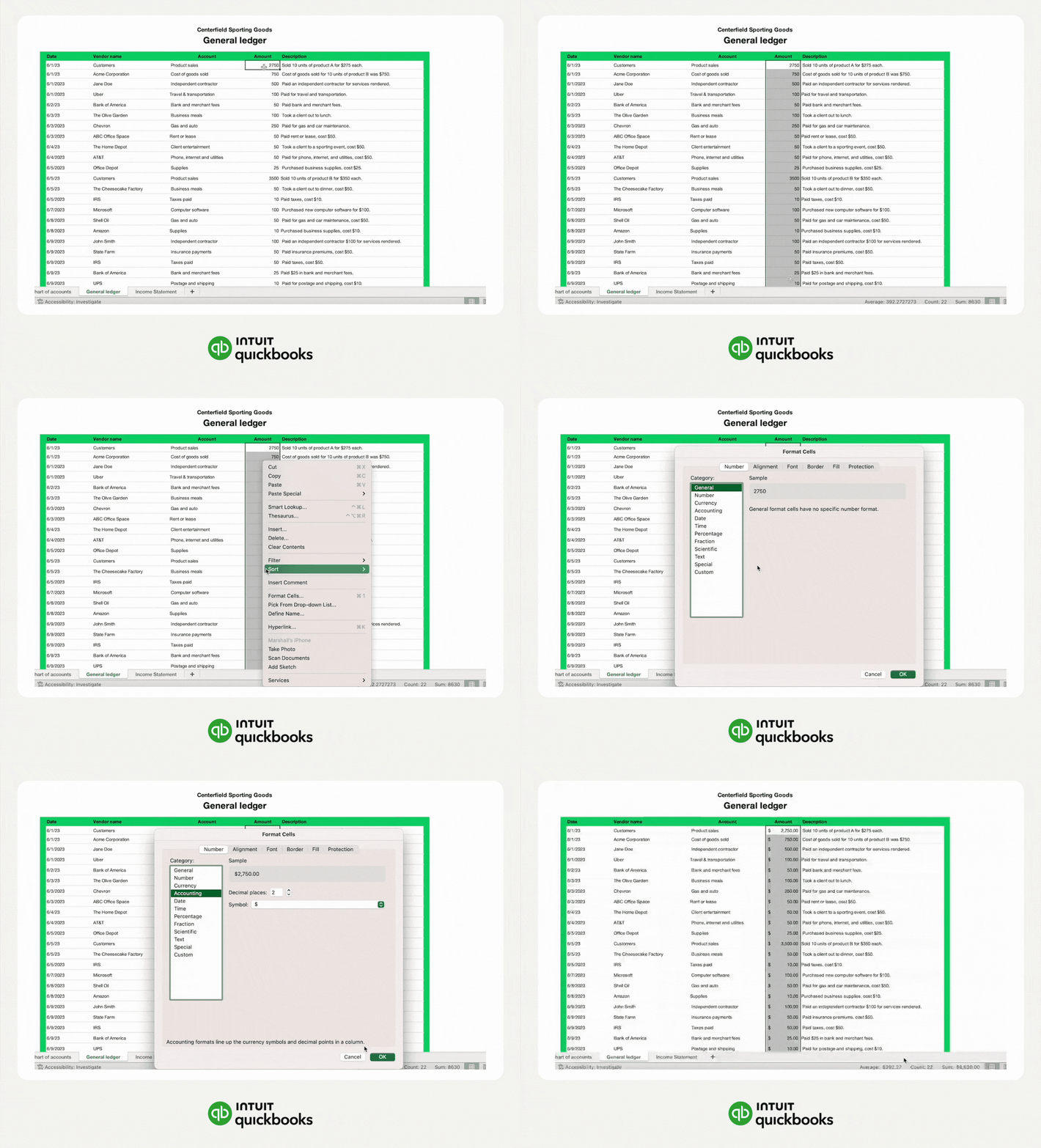
Design simple input forms using Excel tables or clear cell ranges. Forms should have fields for date, description, amount, and account type. This makes entering data faster and less confusing.
Set up data validation rules to avoid errors. Use dropdown lists for account names and restrict numbers to positive values. This ensures the data stays clean and accurate.
Building Core Accounting Functions
Recording transactions is the first step in building your accounting software. Use Excel sheets to enter data like dates, amounts, and descriptions. This helps keep track of all money movements. Create columns for income, expenses, and categories to stay organized.
Automating calculations saves time and reduces errors. Use Excel formulas like =SUM() to add totals automatically. Formulas can also calculate tax, discounts, and balances. This makes your software faster and easier to use.
Summarizing financial data gives a clear picture of your money. Build summary tables or dashboards using =SUMIF() and =COUNTIF() formulas. Show totals for income, expenses, and profit. This helps understand your financial health quickly.

Credit: www.youtube.com
Using Formulas And Functions
SUM adds numbers in a range quickly. Use it to total expenses or income. IF helps check conditions. For example, if a payment is overdue, mark it red.
VLOOKUP finds data in a table based on a key value. It’s useful to get prices or client details. INDEX-MATCH is a flexible way to look up values. It works well with large tables.
Conditional Formatting changes cell colors based on rules. Highlight overdue invoices or low balances. It makes important data easy to see at a glance.
Creating Reports And Dashboards
Profit and Loss statements show how much money a business made or lost. Use Excel formulas to sum income and expenses. This helps track financial health over time. Keep it simple by listing all earnings and costs in rows. Then, subtract expenses from income to find net profit.
Balance sheets list what a business owns and owes. Create sections for assets, liabilities, and equity. Use Excel to total each section. The formula =SUM() adds amounts quickly. Balance sheets must always balance: assets equal liabilities plus equity.
Charts make data easy to see and understand. Use Excel’s chart tools to turn numbers into bars, lines, or pies. Visuals help spot trends in profits or expenses fast. Choose chart types that best match your data. Keep charts clear and simple for quick reading.
Adding Automation With Macros
Start by recording simple macros to automate tasks. Click the Record Macro button, perform actions, then stop recording. Excel saves these steps for later use.
Assign macros to buttons for easy access. Insert a button from the Developer tab, then link it to the macro. Click the button to run the macro instantly.
Ensure security and backup by enabling macro warnings. Save your file often, and keep backup copies. This protects your work from accidental loss or harmful code.
Testing And Troubleshooting
Checking for errors means looking at each formula and cell carefully. Make sure all formulas are correct and no cells are left empty by mistake. Use Excel’s error checking tool to find common mistakes. Double-check data entries to avoid wrong inputs.
Validating calculations involves comparing your Excel results with manual calculations. Pick a few examples and calculate them by hand. Confirm that the totals and sums match exactly. This step ensures your accounting software works accurately.
Optimizing performance helps your Excel file run faster and smoother. Remove any unnecessary formulas or data. Use simple formulas instead of complex ones. Limit the use of volatile functions like OFFSET or INDIRECT. Save the file often to prevent data loss.
Maintaining And Updating Your Software
Backing up data regularly protects your work from loss. Save copies on a USB drive or cloud storage. Set a schedule for backups, like daily or weekly. This keeps your data safe in case of errors or crashes.
Incorporating user feedback helps improve your software. Ask users what features they like or want changed. Make small updates based on their advice. This keeps the software useful and easy to use.
Scaling features over time means adding new tools as needs grow. Start simple, then add functions like charts or reports later. This keeps your software flexible and ready for more tasks.
Credit: quickbooks.intuit.com
Frequently Asked Questions
What Basic Features Should Excel Accounting Software Have?
Excel accounting software should include income and expense tracking, automated calculations, invoicing, and financial reporting. These features help manage finances efficiently and provide clear insights into business performance.
How Can I Automate Calculations In Excel Accounting Software?
Use Excel formulas like SUM, IF, and VLOOKUP to automate calculations. This reduces manual errors and saves time when updating financial data.
Is Excel Suitable For Small Business Accounting?
Yes, Excel is ideal for small businesses due to its flexibility, customization options, and cost-effectiveness. It handles basic accounting tasks without complex software.
Can I Create Financial Reports Using Excel Accounting Software?
Absolutely. Excel allows you to generate customized financial reports like profit and loss statements and balance sheets using built-in templates and pivot tables.
Conclusion
Creating accounting software in Excel is simple and useful. You can track income and expenses clearly. Using formulas helps automate calculations quickly. Organizing data well makes your work easier. Save your file often to avoid losing data. Practice regularly to improve your skills.
This tool suits small business and personal use. Start small, add features as you learn. Excel gives you control without extra cost. Keep your records neat for better decisions. This approach saves time and money. Try building your own accounting sheet today!