Are you tired of complicated accounting software that feels overwhelming and hard to use? What if you could manage your finances with a tool you already know—Excel?
Excel accounting lets you take control of your business’s numbers without the steep learning curve. Imagine tracking expenses, creating invoices, and balancing budgets all in one place, with the flexibility to customize everything to fit your needs. Keep reading to discover how Excel can simplify your accounting tasks and save you time and money.
Your path to smarter, easier accounting starts here.
Setting Up Your Workbook
Setting up your Excel accounting workbook is the first step toward clear financial tracking. A well-organized workbook helps you save time and reduces errors. It also makes your data easy to understand and manage. Follow these simple steps to create a strong foundation.
Creating A Chart Of Accounts
The chart of accounts lists all account names and numbers for your business. This list helps you organize income, expenses, assets, and liabilities. Start by making a new sheet named "Chart of Accounts." Enter account numbers in one column. Add account names in the next column. Keep this list simple and logical. Use categories like revenue, expenses, and assets. This setup makes it easy to record transactions later.
Designing Transaction Templates
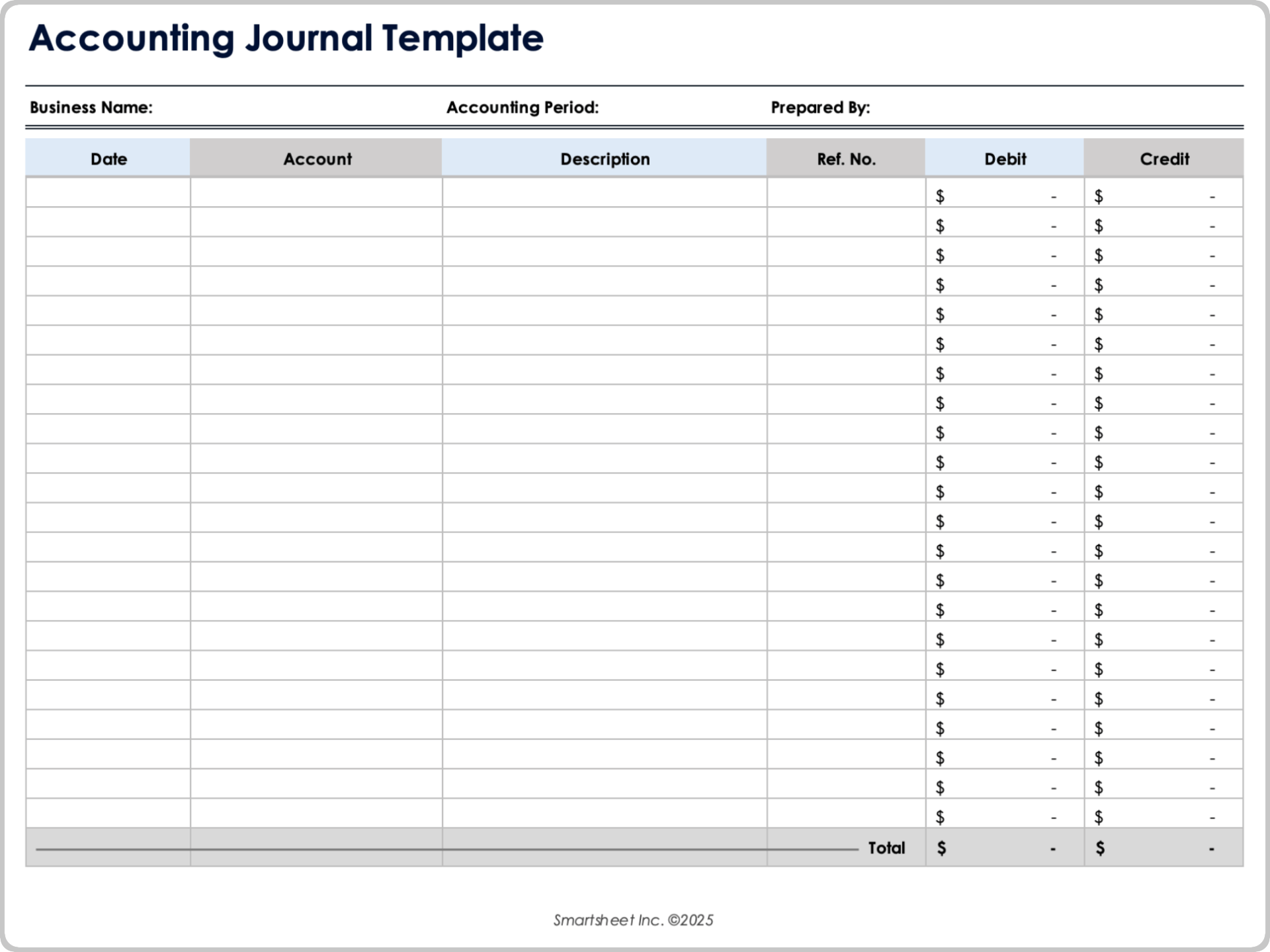
Transaction templates help you enter financial data quickly and correctly. Create a new sheet titled "Transactions." Add columns for the date, account, description, debit, and credit. Use drop-down lists for accounts to avoid typing mistakes. Format the date column for easy input. Set debit and credit columns to number format. This template keeps your records consistent and neat.
Using Named Ranges For Clarity
Named ranges give simple names to specific cells or groups of cells. This makes formulas easier to read and understand. For example, name your chart of accounts range "AccountsList." Use this name in your transaction sheet drop-downs. Select the cells, click in the name box, and type your chosen name. Named ranges reduce errors and speed up your work.
Credit: www.smartsheet.com
Data Entry Techniques
Data entry is a key part of Excel accounting. It helps keep records accurate and easy to understand. Using smart techniques can save time and reduce mistakes. These methods make your work smoother and more reliable. Focus on simple tools that improve data input. Below are some useful ways to enhance data entry in Excel.
Using Drop-down Lists For Consistency
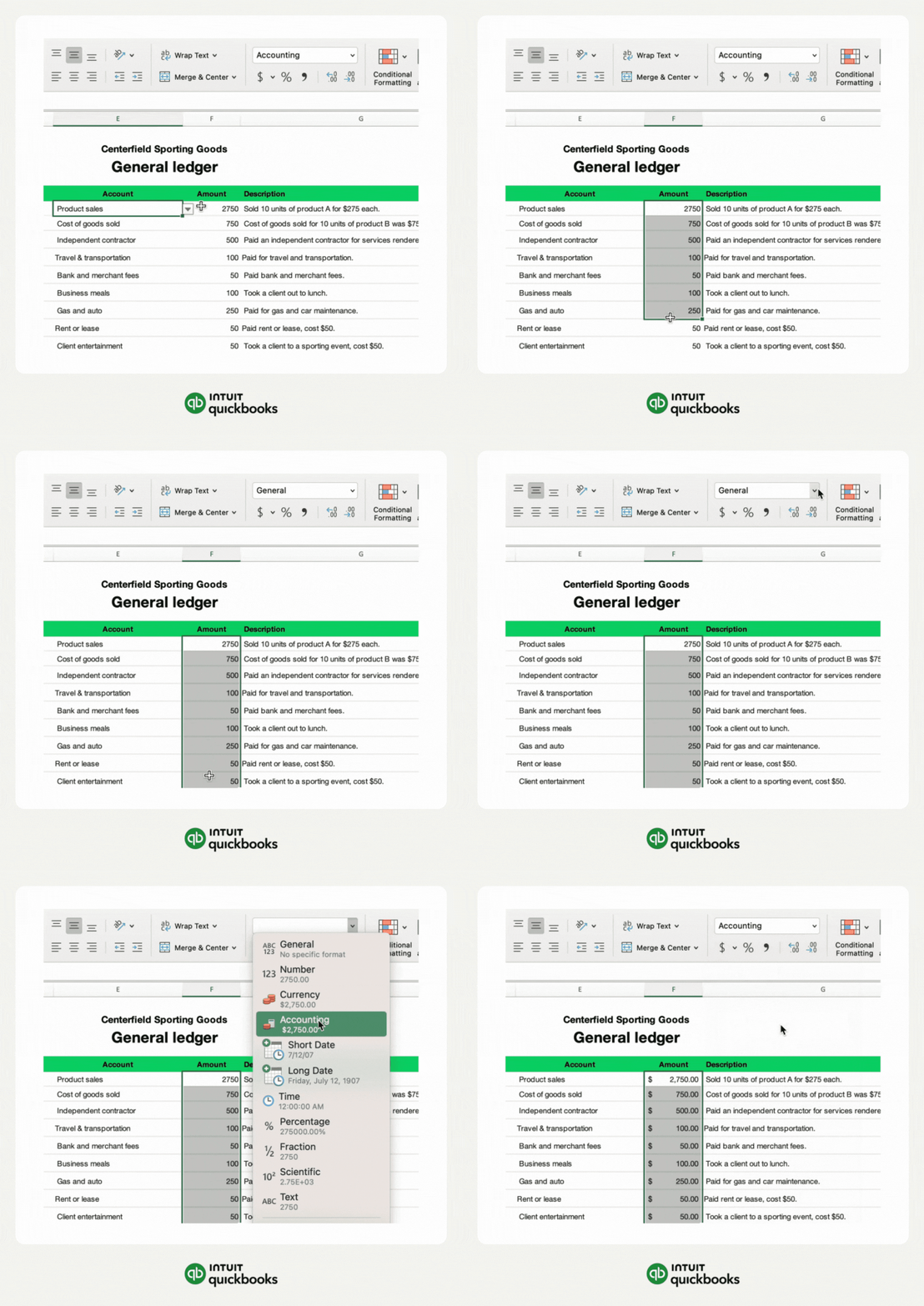
Drop-down lists limit choices to preset options. This helps avoid spelling errors or wrong entries. They keep data uniform across your sheets. Setting them up is simple with Excel’s Data Validation feature. Use lists for categories like payment methods or expense types. This keeps your records neat and easy to analyze.
Applying Data Validation Rules
Data validation checks if entries meet set rules. For example, you can allow only numbers or dates. This stops invalid data from being entered. Validation can also restrict values to a specific range. It helps maintain clean, error-free data. You can set warnings or prevent wrong entries entirely.
Automating Repetitive Entries
Repeating the same data wastes time and causes errors. Use Excel features like AutoFill or formulas to automate entries. For example, fill dates or invoice numbers quickly. Automation cuts manual typing and speeds up your work. It ensures consistent data and fewer mistakes.
Formulas For Accurate Calculations
Accurate calculations are essential in Excel accounting. Formulas help reduce errors and save time. They allow you to analyze data with precision and speed. Using the right formulas improves your financial tracking and reporting.
Sumif And Sumifs For Conditional Totals
SUMIF adds values based on one condition. For example, sum sales only for a specific month. SUMIFS works with multiple conditions. It sums data that meets all given criteria. These formulas help you create clear, conditional totals fast.
Using If And Nested If Statements
IF statements check conditions and return results. They help make decisions in your calculations. Nested IFs handle several conditions in order. This helps to assign categories or flags automatically. These formulas add logic to your accounting sheets.
Leveraging Vlookup And Index-match
VLOOKUP finds data in a table by looking up a value. It’s useful for matching accounts or invoices. INDEX-MATCH is more flexible and powerful. It can search left or right and handle large data better. Both help you link and retrieve accurate information.
Credit: quickbooks.intuit.com
Tracking Income And Expenses
Tracking income and expenses in Excel helps keep your finances clear and organized. This process shows where money comes from and where it goes. It helps you make better decisions and avoid surprises. Using Excel for accounting makes this easy and flexible.
Categorizing Transactions
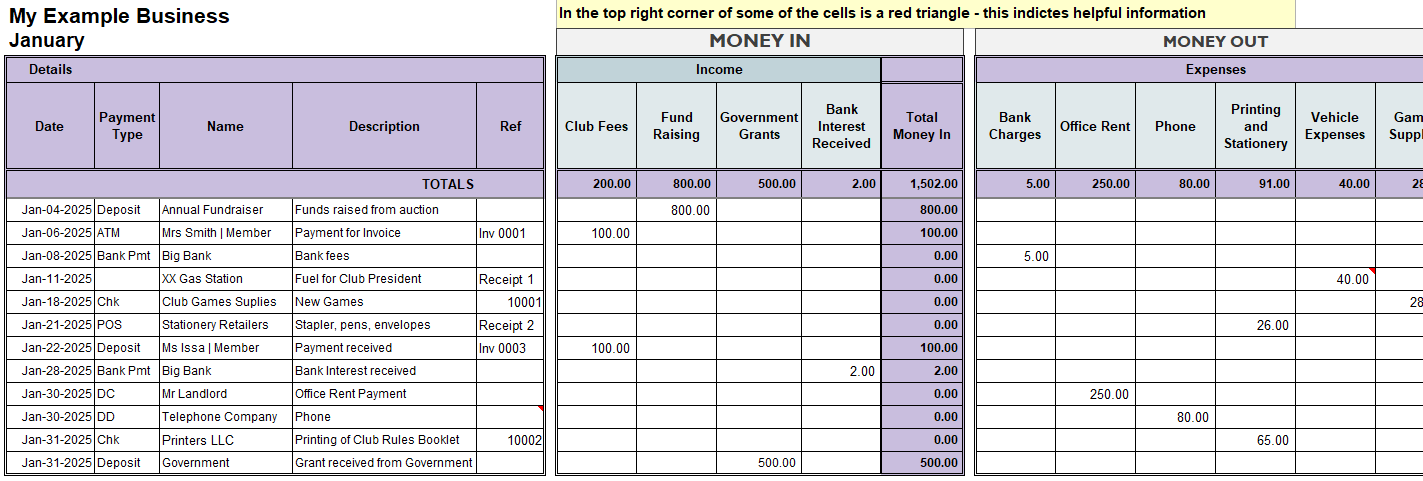
Start by sorting each income and expense into groups. Categories like rent, salary, food, and utilities work well. This helps you see patterns and control spending. Use Excel’s drop-down lists to keep categories consistent. Clear labels make reports easier to understand.
Monthly And Yearly Summaries
Summarize your income and expenses every month and year. Excel’s SUM and SUMIF functions work well for this. These summaries show your total earnings and costs over time. Spot trends, like rising expenses or steady income. Summaries help plan budgets and save money.
Visualizing Data With Charts
Charts turn numbers into easy-to-read visuals. Use bar charts for monthly income and expenses. Pie charts show the share of each category. Visuals make it simple to compare data quickly. Excel’s chart tools let you customize colors and labels. This helps you track money at a glance.
Reconciliation And Error Checking
Reconciliation and error checking are key tasks in Excel accounting. They ensure your data is accurate and trustworthy. Mistakes can cause big problems in financial reports. Using Excel tools helps find and fix errors quickly. This keeps your accounts balanced and reliable.
Bank Reconciliation Tips
Start by comparing your bank statement with your Excel records. Highlight differences to spot missing entries or duplicates. Use filters to sort transactions by date or amount. Mark cleared items to track what you have checked. Regularly update your Excel file with new bank data. This makes reconciliation faster and easier each time.
Using Conditional Formatting To Spot Errors
Conditional formatting helps highlight unusual data automatically. Set rules to color cells with negative numbers or duplicates. Use it to find empty cells where numbers should be. This visual aid makes errors easy to see at a glance. Change the colors to fit your style and improve clarity.
Auditing Formulas Efficiently
Excel offers tools to check formulas for mistakes. Use the “Trace Precedents” feature to see which cells affect a formula. “Trace Dependents” shows which cells rely on the formula’s result. Check for inconsistent formulas in a column using “Error Checking.” These tools save time and reduce errors in calculations.
Advanced Tools And Features
Excel offers many tools to improve accounting work. These advanced features help save time and make data clearer. They allow users to organize, analyze, and report financial information easily. Let’s explore some key tools that enhance Excel accounting.
Pivottables For Dynamic Reporting
PivotTables let you summarize large data sets quickly. They help create reports by grouping and filtering information. Users can drag and drop fields to see different views. This makes it easy to spot trends and compare numbers. PivotTables are perfect for monthly or yearly financial reviews.
Macros To Automate Tasks
Macros record steps you repeat often. Running a macro does these steps automatically. This saves time on tasks like formatting, calculations, or data entry. Macros reduce errors and keep work consistent. Even simple macros can improve efficiency a lot.
Using Power Query For Data Import
Power Query imports data from many sources into Excel. It cleans and organizes the data before you use it. This tool handles large files and different formats easily. Power Query helps keep your accounting data up to date. It reduces manual copy-pasting and errors.
Best Practices For Security And Backup
Keeping your Excel accounting files safe is very important. Data loss or theft can cause big problems. Good security and backup habits help protect your work. They keep your financial data secure and easy to restore.
Simple steps can stop unauthorized access. Regular backups prevent data loss from errors or crashes. Managing who can open and edit files limits risks. Follow these tips to keep your Excel files safe and sound.
Protecting Worksheets And Workbooks
Use passwords to lock your Excel files. This stops others from opening or changing them. You can also protect specific sheets to limit edits. Lock cells that contain formulas or important data. This keeps your work accurate and secure.
Enable encryption for extra security. Excel offers built-in tools for this. Avoid sharing passwords in emails or messages. Change passwords regularly to stay safe.
Regular Backup Strategies
Back up your Excel files often. Save copies on external drives or cloud storage. This helps recover data after accidental deletion or hardware failure. Use automated backup tools for convenience. Keep multiple backup versions to track changes over time.
Check your backups regularly to ensure files are complete. Store backups in different locations to reduce risk. A good backup plan saves time and stress.
Managing Access And Permissions
Limit who can view or edit your Excel accounting files. Use file-sharing settings to control access. Assign roles like viewer or editor based on needs. Avoid giving full access to everyone.
Review permissions regularly and remove unneeded users. Use strong passwords and two-factor authentication. This reduces chances of unauthorized access and data leaks.
Credit: www.beginner-bookkeeping.com
Frequently Asked Questions
What Is Excel Accounting Used For?
Excel accounting helps track financial data, manage budgets, and prepare reports. It suits small businesses and freelancers needing simple accounting tools.
How Can Excel Improve Accounting Accuracy?
Excel reduces errors with formulas and automated calculations. It ensures consistent data entry and easy error detection for reliable financial records.
Is Excel Suitable For Complex Accounting Tasks?
Excel handles basic to moderate accounting well but lacks advanced features. For complex needs, specialized accounting software is recommended.
Can Excel Automate Accounting Processes?
Yes, Excel automates tasks like invoicing and expense tracking using macros and templates, saving time and reducing manual work.
Conclusion
Excel accounting helps you track finances with ease and accuracy. It saves time by organizing data in one place. You can create simple budgets and reports quickly. This tool suits small businesses and beginners well. Learning basic Excel skills improves your money management.
Keep practicing to avoid errors and stay confident. Use templates to make tasks faster and clearer. Excel supports better decisions by showing clear numbers. Start small, and build your skills step by step. Managing accounts feels less stressful with Excel’s help.