Are you looking for a simple way to manage your finances without spending money on expensive software? Creating your own accounting software in Excel could be the perfect solution.
Imagine having a tool that fits your exact needs, tracks your income and expenses, and helps you stay organized—all built by you, step by step. You will discover easy methods to turn Excel into a powerful accounting system. Ready to take control of your financial data and save time?
Let’s dive in and make your own accounting software today.
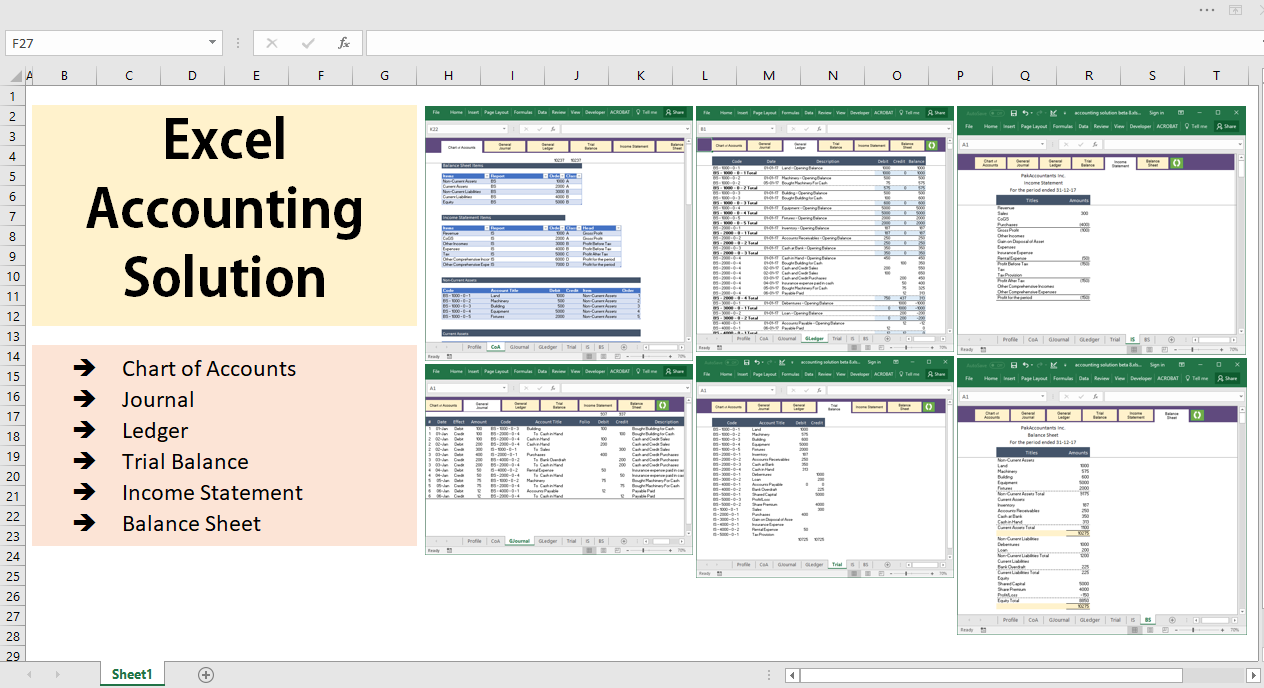
Credit: pakaccountants.com
Planning Your Accounting Software
Planning your accounting software in Excel is a crucial first step. A clear plan helps you build a tool that fits your needs. It saves time and avoids mistakes later. Start by understanding what your software should do. Then, decide how users will interact with it. Finally, create a smooth process for handling data. This section breaks down these steps.
Identifying Key Features
Think about the basic tasks your software must handle. Common features include tracking income and expenses. It should also calculate profits and losses easily. Consider adding invoice creation and payment tracking. Budgeting tools can help manage finances better. List all important functions before starting. This list guides your Excel setup.
Setting Up User Requirements
Define who will use the software. Will it be for one person or a team? Understand their skill levels with Excel. Keep the design simple if users have limited experience. Decide what data users need to enter. Also, consider how they want to view reports. This step ensures your software is user-friendly.
Designing The Workflow
Create a logical order for tasks in your software. Start with data entry forms for transactions. Follow with automatic calculations and updates. Include easy ways to review and correct data. End with generating reports for decision-making. A clear workflow prevents confusion. It makes your software efficient and easy to use.
Setting Up The Excel Workbook
Setting up the Excel workbook is the first step to create your own accounting software. A well-organized workbook makes data entry easier and helps generate accurate reports. It keeps all your financial information clear and accessible.
Start by planning the structure of your workbook. Each worksheet should serve a specific purpose. This way, you avoid confusion and save time later. Let’s break down the process into simple steps.
Creating Worksheets For Data Entry
Data entry sheets hold the raw information for your accounting system. Create separate sheets for different types of data, such as income, expenses, and assets. Use clear columns for dates, descriptions, amounts, and categories. This method keeps your data neat and easy to review.
Organizing Sheets For Transactions And Reports
Organize sheets based on their roles. One sheet can track daily transactions. Another can summarize monthly reports. Keep these sheets updated regularly. This separation helps you quickly find transactions and review financial summaries without mixing data.
Naming And Formatting Sheets
Give each sheet a meaningful name. Use simple words like “Income,” “Expenses,” or “Summary.” Format the sheets with headers and borders to separate data clearly. Use consistent fonts and colors for better readability. Proper names and formatting improve navigation and make your workbook user-friendly.
Building Data Entry Forms
Building data entry forms in Excel makes accounting easier and more organized. These forms help users enter information quickly and accurately. Good forms reduce errors and save time. Excel has tools to create simple, clean forms that anyone can use. Focus on clear layout and easy input methods.
Using Tables For Data Management
Tables help manage data efficiently in Excel. They keep data organized in rows and columns. You can sort and filter information easily within tables. Tables automatically expand when new data is added. This feature keeps your accounting records up to date. Tables also improve formula accuracy by using structured references.
Implementing Drop-down Lists
Drop-down lists simplify data entry by limiting choices. Users select options instead of typing. This reduces typing errors and speeds up the process. You can create lists from ranges or type fixed options. Drop-downs work well for categories like expense types or payment methods. They keep data consistent and clean.
Applying Data Validation Rules
Data validation controls what users can enter in a cell. It prevents incorrect or invalid data from being saved. You can set rules for numbers, dates, or text length. Validation also shows messages to guide users while entering data. Using validation keeps your accounting data accurate and reliable.

Credit: quickbooks.intuit.com
Creating Transaction Logs
Creating transaction logs is a key step in building accounting software in Excel. These logs track every financial movement clearly. They help you understand where money comes from and where it goes. A well-made log keeps your records organized and easy to follow.
Start by listing all income and expenses. This gives a full picture of your finances. Next, group transactions into categories. These groups make it simple to find and analyze data. Lastly, automate the date and time entries. This saves time and reduces errors.
Recording Income And Expenses
Begin your log with two main columns: income and expenses. Enter every payment or receipt here. Use one row per transaction. This method keeps your log clean and neat. Make sure to record the amount and description for each entry. This gives a clear idea of the transaction’s purpose.
Setting Up Categories And Accounts
Create categories like Sales, Rent, Utilities, and Supplies. Assign each transaction to a category. This helps in tracking spending and earnings. You can add subcategories for more detail. For example, under Sales, list Product A and Product B. Use separate accounts for cash, bank, and credit. This division ensures accuracy in your financial records.
Automating Date And Time Entries
Use Excel functions to insert the current date and time automatically. The formula =TODAY() adds today’s date. For time, use =NOW(). These formulas update each time you open the file. Lock the cells after entry to prevent changes. Automation speeds up your work and reduces mistakes.
Developing Calculation Formulas
Developing calculation formulas is a key step in building accounting software in Excel. Formulas help to automate math tasks. They save time and reduce errors. You can create formulas that add, subtract, and analyze data.
Formulas in Excel are easy to write. You just need to understand how to use them correctly. This section covers basic formulas for summing transactions, calculating balances, and using conditional functions. These formulas make your accounting sheet work smoothly and accurately.
Summing Transactions
Summing transactions means adding all your income or expenses. Use the SUM function to do this quickly. For example, =SUM(B2:B10) adds all values from cell B2 to B10. It helps keep track of total sales or costs.
Place this formula in a cell where you want the total to appear. It updates automatically when you add new numbers.
Calculating Balances
Calculating balances shows how much money you have left. You subtract expenses from income. Use a simple formula like =C2-D2 where C2 is income and D2 is expenses.
This formula updates each time you enter new values. It helps you see your current financial status clearly.
Using Conditional Functions
Conditional functions work based on rules you set. The IF function is useful here. For example, =IF(E2>0, "Profit", "Loss") checks if the balance in E2 is positive or negative.
This function helps you quickly identify profits or losses. It makes your accounting sheet more interactive and informative.
Generating Financial Reports
Generating financial reports is a key step in using accounting software in Excel. These reports help you understand your business’s financial health. You can see how much money you make, what you owe, and how cash moves in and out. Excel makes creating these reports simple and clear.
Creating Profit And Loss Statements
A Profit and Loss statement shows your income and expenses over time. Start by listing all income sources in one column. Then, add all expenses below in separate rows. Use Excel formulas to subtract total expenses from total income. This gives you the net profit or loss. Format the report with clear headings and totals.
Building Balance Sheets
Balance sheets display what your business owns and owes at a specific date. Divide the sheet into two parts: assets and liabilities. List all assets like cash, inventory, and equipment on one side. List liabilities like loans and bills on the other side. Use Excel to sum each side and check that assets equal liabilities plus equity.
Designing Cash Flow Reports
Cash flow reports track money entering and leaving your business. Organize cash inflows such as sales and loans in one section. List cash outflows like rent, salaries, and bills in another. Use Excel formulas to calculate net cash flow for each period. This report helps monitor your business’s cash position.
Adding Automation With Macros
Adding automation with macros makes your accounting software in Excel smarter and faster. Macros help perform repeated tasks with one click. They reduce errors and save time. You do not need deep coding skills to use macros. Excel offers easy tools to create and manage them.
Recording Simple Macros
Start by recording simple macros for tasks you do often. Go to the Developer tab and click "Record Macro." Perform the task step-by-step. Excel saves your actions as a macro. Stop recording once done. Play the macro to repeat the task automatically.
This method requires no programming knowledge. It helps automate data entry, formatting, and calculations. Make sure your steps are clear and consistent for best results.
Assigning Macros To Buttons
Assign macros to buttons for easy access. Insert a button from the Developer tab. Link the button to a macro by selecting it from the list. Now, clicking the button runs the macro immediately.
Buttons make your software user-friendly. They help users run tasks without navigating menus. Arrange buttons clearly on your worksheet for quick use.
Ensuring Security And Backup
Macros can carry security risks. Only enable macros from trusted sources. Use Excel’s security settings to manage macro permissions.
Always back up your Excel files before adding macros. Save versions regularly to avoid data loss. Test macros on sample files first to ensure they work correctly.
Testing And Troubleshooting
Testing and troubleshooting are key steps when creating accounting software in Excel. These steps ensure your software works correctly and delivers accurate results. Testing helps find mistakes early. Troubleshooting fixes these problems quickly. Both save time and improve reliability.
Checking Formula Accuracy
Start by reviewing all formulas carefully. Check if each formula uses the right cells. Compare results with manual calculations. Use Excel’s formula auditing tools. They help trace and verify calculations. Correct any incorrect references or operations. Accurate formulas prevent wrong financial reports.
Validating Data Entries
Data entry errors cause many problems. Use data validation rules to limit input types. For example, allow only numbers in amount fields. Set date ranges for transaction dates. Use drop-down lists for categories. This reduces typing mistakes. Check that all required fields are filled. Clean data improves your software’s accuracy.
Fixing Common Errors
Look for common Excel errors like DIV/0!, VALUE!, and REF!. These show issues like division by zero or wrong references. Use error-checking tools to locate them. Fix errors by adjusting formulas or data. Test again after corrections. Keep backup copies before major changes. This ensures your accounting software stays reliable.
Tips For Maintaining Your Software
Maintaining your accounting software in Excel keeps it accurate and efficient. Regular care helps avoid data loss and errors. It also makes the software easier to use over time. Follow these tips to keep your software running smoothly and reliably.
Regular Data Backup
Save your work often to prevent losing important data. Use Excel’s auto-save feature if possible. Create backup copies on a different device or cloud storage. Schedule weekly backups to keep files up to date. This habit protects you from accidental deletions or file corruption.
Updating Categories And Accounts
Review your categories and accounts regularly to match changes in your business. Add new categories for new types of expenses or income. Remove or merge old categories to keep the list clear. Keep account names simple and easy to understand. Consistent updates make reports more accurate and useful.
Improving User Experience
Make your software simple to use for everyone involved. Use clear labels and instructions on each sheet. Create drop-down lists to reduce typing errors. Add color coding to highlight important data or sections. Test your software with different users and gather feedback. Small improvements can save time and reduce mistakes.

Credit: www.youtube.com
Frequently Asked Questions
What Basic Features Should Excel Accounting Software Include?
Excel accounting software should include expense tracking, income recording, invoice generation, and financial reporting. These features help manage finances efficiently and simplify accounting tasks.
How Can I Automate Calculations In Excel Accounting Software?
Use Excel formulas like SUM, IF, and VLOOKUP to automate calculations. This reduces errors and speeds up data processing in your accounting sheet.
Is Excel Suitable For Small Business Accounting?
Yes, Excel is ideal for small businesses due to its flexibility and customization. It supports budgeting, invoicing, and financial analysis without extra costs.
How Do I Secure My Accounting Data In Excel?
Protect your Excel files with passwords and restrict editing permissions. Regularly back up data to avoid loss and maintain confidentiality.
Conclusion
Creating accounting software in Excel is simple and useful. You can track income, expenses, and profits with ease. Excel offers tools to organize and analyze your data quickly. This method saves money and fits small business needs well. Practice building your spreadsheet step-by-step to avoid mistakes.
Keep your design clear and update records regularly. Your accounting will become more accurate and efficient over time. Start now and see how Excel can help your business grow.